Having a suspended Google Business Profile can feel like a massive headache, especially since it directly affects your visibility on Google Search and Maps—and ultimately your revenue. Suddenly, your customers can’t find you, reviews vanish, and confusion sets in.
But don’t panic—this problem is more common than you think, and the good news is that it’s usually fixable. In this guide, we’ll simplify the recovery process by breaking it down step by step, showing you exactly how to get your profile reinstated quickly, clearly, and without any stress. Let’s dive in!
If you’re new to this, you may want to first understand how local SEO works and why it matters for service-based businesses.
Why Did Google Suspend Your Profile?
Before jumping into the recovery process, let’s briefly understand why your profile might be suspended. Usually, Google suspends profiles due to:
- Incorrect or misleading business information.
- Multiple profiles for the same business.
- Violations of Google’s guidelines (even unintentionally!).
- Issues verifying the legitimacy of the business.
Knowing the cause helps you avoid making the same mistake again.
Step-by-Step Recovery Guide
Step 1: Confirm the Type of Suspension
Google typically issues two types of suspensions, and identifying yours is crucial to knowing what to do next:
- Soft Suspension:
Your profile is still visible, but marked as unverified. You have access to your dashboard, but you can’t manage the profile as normal. - Hard Suspension:
Your business completely disappears from Google Maps and search results. This is the more serious suspension, but still fixable!
Check your email or Google Business Profile dashboard carefully; Google usually tells you explicitly which type of suspension you’re facing.
Step 2: Review Google’s Guidelines
Once you’ve identified the suspension type, take some time to thoroughly review Google’s guidelines for business profiles. You might have unintentionally violated a guideline you weren’t aware of.
Pay particular attention to:
- Business Name & Address: Make sure they precisely match official records.
- Service Areas: If you operate remotely or without a storefront, ensure your settings align with Google’s policies.
- Categories and Descriptions: Avoid using misleading terms or keywords that don’t genuinely reflect your business.
Step 3: Fix Any Issues Immediately
After reviewing guidelines, immediately address any violations or inaccuracies you’ve spotted. Here’s a more detailed checklist:
- Business Name: Must exactly match your legal or registered business name. Remove any extra keywords or promotional phrases.
- Address: Must be a physical address where customers can visit, unless your business explicitly allows service-area listings.
- Duplicate Listings: Identify duplicates and request Google merge or remove them through your dashboard or support request.
- Categories: Make sure categories reflect what your business genuinely provides.
Taking immediate corrective actions shows Google you’re serious about compliance.
Step 4: Gather Supporting Documentation
To prove legitimacy, Google will ask you for supporting documents. It’s crucial to have these ready upfront. Typically accepted documents include:
- Official Business License: Clearly showing your business name and address.
- Recent Utility Bills: Must display your registered address and business name.
- Storefront Photos: Images clearly displaying your storefront signage, company vehicles with branding, or business interiors.
The clearer and stronger your evidence, the faster Google will likely resolve your case.
Step 5: Submit a Reinstatement Request
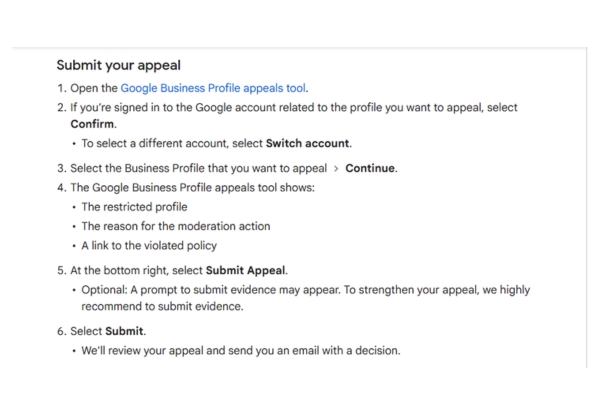
When ready, visit Google’s official Business Profile Reinstatement Request Form and fill it out meticulously. To improve your chances:
- Clearly state the problem and how you’ve already corrected it.
- Mention briefly any documentation you’re providing, making sure each is clearly labeled.
- Be polite and concise—avoid lengthy explanations or unnecessary details.
This step is your direct line of communication with Google—make it count!
Step 6: Wait for Google’s Response
Google typically responds within 3–7 business days. During this waiting period:
- Resist submitting multiple reinstatement requests immediately, as it might delay the process further.
- Monitor your email regularly, including your spam folder, to ensure you don’t miss important communications.
- If Google takes longer than usual (over 10 business days), consider politely following up via Google support or the Google Business Profile community forum.
Step 7: Follow Up
If your reinstatement request gets rejected, don’t panic—this isn’t uncommon. Follow these simple, calm steps:
- Read Carefully: Google typically explains why your request was denied. Take notes and clearly understand what went wrong.
- Correct and Improve: Address every point Google mentions, leaving no ambiguity.
- Re-appeal Strategically: Submit a new reinstatement request, clearly indicating the new actions you’ve taken since your last appeal. Add additional supporting documentation if needed.
Staying persistent and clearly addressing Google’s feedback usually results in eventual success!
Preventing Future Suspensions
Once your profile is reinstated, keeping it in good standing is key. Here’s how to stay on Google’s good side:
- Follow the rules carefully: Even small violations can trigger suspensions. When in doubt, check Google’s guidelines.
- Keep your details up to date: Regularly review your hours, address, categories, and contact info.
- Avoid creating duplicates: Stick to one listing per location. If you spot a duplicate, report or request a merge.
- Respond to Google fast: Don’t ignore alerts or emails—they usually come before a suspension.
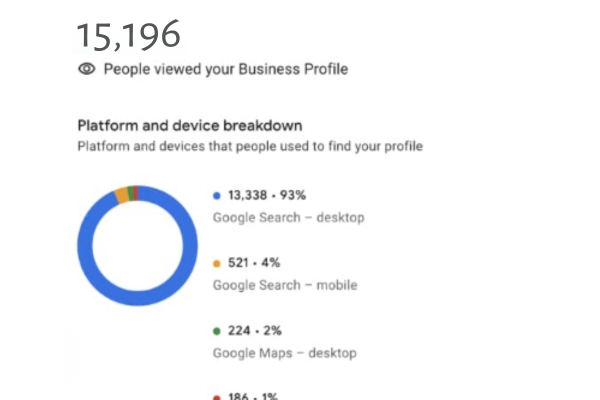
Make it a habit to check your Google Business Profile Insights weekly. If you notice a sudden drop in views, calls, or activity, it could be a red flag. Staying alert helps you catch potential issues before they turn into suspensions.
From Suspended to Searchable
Dealing with a Google Business Profile suspension isn’t enjoyable, but it’s absolutely manageable with the right approach. Remember, you’re not alone—many businesses go through this, and most successfully recover by carefully following the steps outlined in this guide. Take this experience as an opportunity to strengthen your overall approach to managing your online presence and preventing future suspensions.
Stay proactive, maintain clear communication with Google, and regularly monitor your profile for accuracy and compliance. By doing so, you’ll not only avoid future headaches but also create a more trustworthy, reliable, and thriving online presence.
Frequently Asked Questions
Typically, 3–7 business days, but it can take longer if Google needs more proof.
After 7–10 days, submit a follow-up through your dashboard or post in the Google Business Profile community forum.
Yes, you can appeal repeatedly, but ensure each appeal has new or corrected information. Don’t spam the system!
Usually not, but reviews can temporarily disappear during suspension. Most return once your profile is reinstated.
Google reviews every report independently. Competitor reporting alone won’t lead directly to suspension without legitimate guideline violations.
No, Google does not charge any fees for reinstating your business profile.